How to combine PDFs on a Mac: Preview or Chrome
Use Preview to arrange individual pages, or PDF Combiner in Chrome to join whole files. Start with copies and check the final document.
Updated 2026-10-09
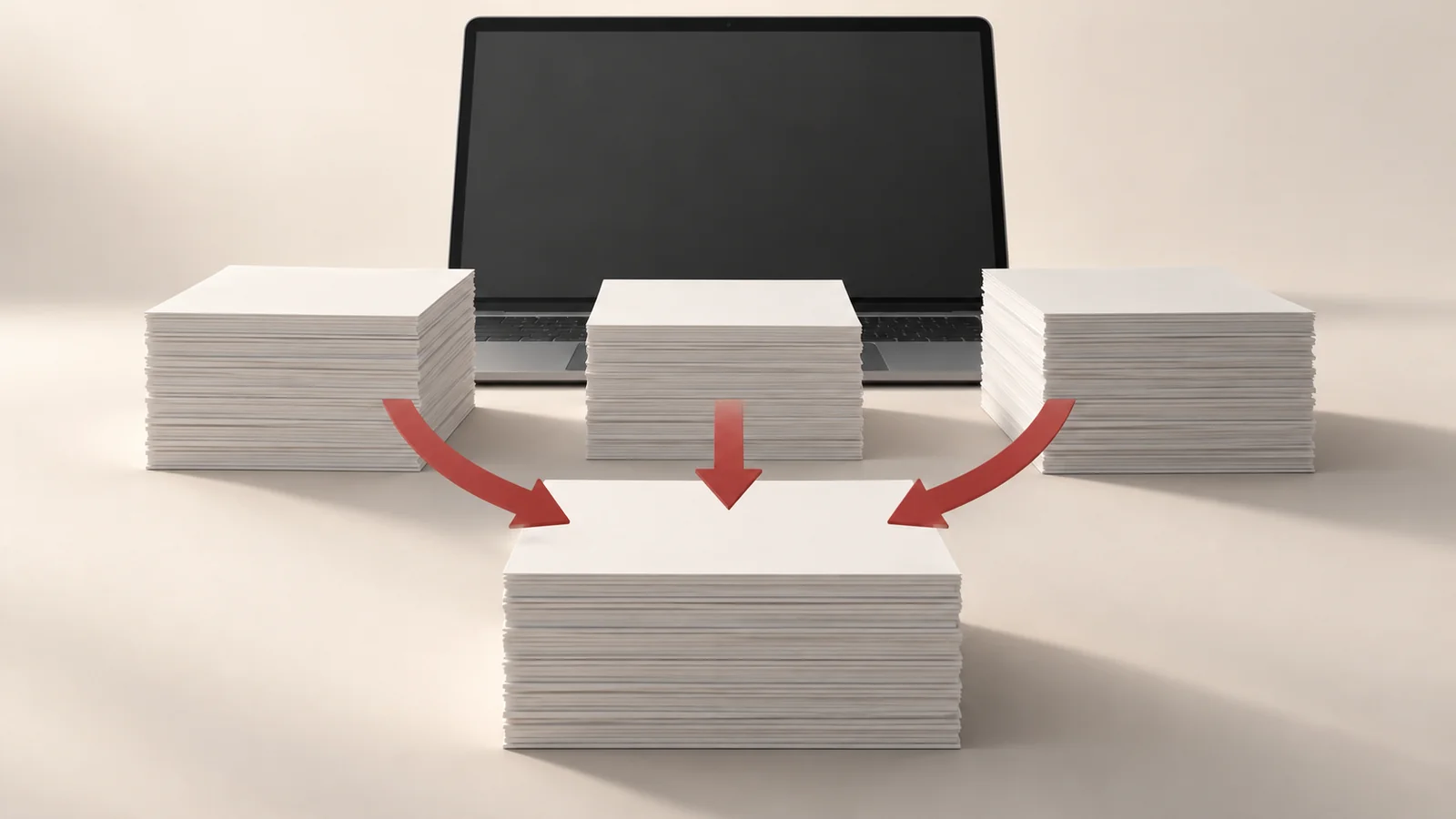
You can combine PDFs on a Mac with Preview, which is already on the computer, or with a Chrome extension. Choose Preview when you need to select or rearrange individual pages. Choose PDF Combiner when you want to join complete PDF files while working in Chrome.
Preview lets you work with individual pages. PDF Combiner moves whole files, so check whether each source PDF already has its pages in the right order.
Choose the workflow for your document
Suppose you have a report and two appendices. If each file already reads in the right order, you can merge the three files as complete blocks. If a page from the second appendix belongs halfway through the report, you need page controls.
That is an illustrative layout, not a test result. Write down the intended sequence before opening a merge tool. A short note such as report, appendix A, appendix B can make the final check easier.
Keep the source files until you have reviewed the output. This matters especially in Preview: Apple says it saves document changes automatically.
Combine PDFs in Preview
Follow Apple's documented workflow:
- Open the PDFs in Preview. Choose File > Duplicate to make working copies if you want to preserve the originals.
- Choose View > Thumbnails in each open document.
- Drag the required page thumbnails from one document's sidebar into the other. Use Command-click to select pages that are not next to each other.
- Place the pages where they belong, then rearrange the thumbnails if needed.
- Check the combined working copy and save it with a filename you can distinguish from the originals.
Apple also documents dragging a PDF's icon from Finder into an open document's sidebar to add the entire file. Use that when you need every page from the source.
Combine whole files in Chrome
The PDF Combiner listing documents local PDF selection, drag-and-drop file ordering and a Combine action that downloads the result. It supports Mac, and its ordering controls move complete files rather than individual pages.
Install it from the Chrome Web Store if needed, open the extension and add your local PDFs. Arrange the files in the sequence you planned, then choose Combine. Open the downloaded document to check it.
Local files use the extension's on-device workflow. PDF links and optional Google Drive access involve online sources; those are separate from combining files already on your Mac.
Check the joins between files
Review the beginning and end of each section in the combined PDF. Check that the first appendix follows the report, that the next appendix begins in the expected place, and that no section appears twice.
Also check the total page count against your source files. A correct count is useful, but it cannot tell you whether the pages are in the right order. Read the boundaries too.
If an individual page sits in the wrong place inside a source PDF, fix that source with a page-editing tool before using a whole-file merger. Dragging that entire file higher in the merge list will move all its pages together.
PDF Combiner takes PDFs. Export a Word document or image as a PDF first if it belongs in your packet. For a packet made from scans, see combining scanned documents into one PDF.
Keep the copy you intend to send
Give the output a clear name and reopen that exact file before attaching it. Check that it contains the complete report, not one of the source documents. Keep the originals separately so you can revise the packet without extracting sections from the combined copy.