Can you combine password-protected PDFs?
A PDF that opens with a password may still restrict editing. Prepare copies you can combine before starting the merge.
Updated 2026-10-13
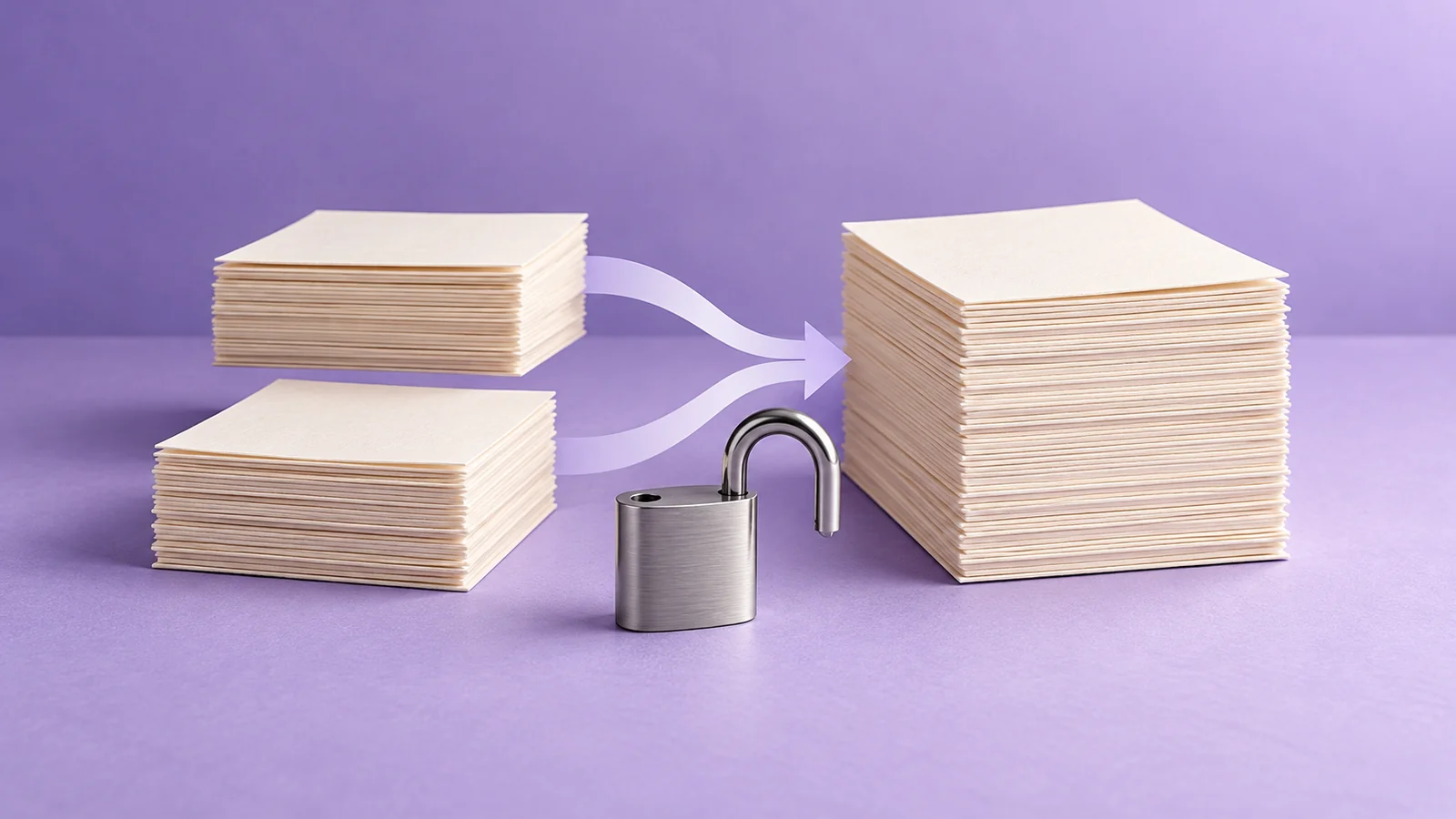
For the workflow below, first prepare PDF copies with password protection removed, with the owner's permission. Then combine those copies. A password that lets you read a document may not let you change its security settings. Check each file first, and ask its owner for a suitable copy if you cannot prepare one yourself.
PDF Combiner's store description documents merging PDFs and arranging whole files. It does not establish support for unlocking protected documents. Treat protection as a preparation step rather than expecting the merge button to remove it.
Find out what the password protects
Adobe describes two types of PDF password protection. A document open password controls access to the file. A permissions password restricts actions such as editing, printing or copying.
That distinction explains why a file may open normally yet refuse an operation in an editor. Being able to read every page is only the first check.
Open each source in a PDF application that displays its security settings. Note which file requires a password and which permits changes. Keep the originals separate from the copies you prepare for merging.
Prepare a copy with the owner's permission
If you control the document and have the required password, use a PDF editor that supports changing its security settings. Adobe's Acrobat instructions give this route:
- Open All tools > Protect a PDF.
- Choose Set security properties, then the Security tab and Change Settings.
- For the working copy, clear both password options if set: Require a password to open the document and Restrict editing and printing of the document. Leave the original file unchanged.
- Enter the permissions password if prompted, confirm, and save the copy.
These are Acrobat steps, not PDF Combiner controls. If you lack the password or permission to make the change, request an unrestricted copy intended for the packet. Repeated merge attempts do not resolve missing access.
Before adding the saved copy, check its security settings to confirm that neither document open nor permissions password protection remains. Open it without a password and check that every page is present. Use a clear filename so you do not select the protected original by mistake.
Combine the prepared PDFs in Chrome
Open PDF Combiner and add the prepared local PDF files. Drag the whole files into the sequence you want, then select Combine and save the downloaded result.
For example, a packet might contain a cover sheet followed by a report and an appendix. This is an illustrative order; use the order requested for your actual document.
The extension arranges whole files. If the report's own pages are out of order, fix that in a page editor first. The single-file upload guide covers the separate task of meeting an upload destination's requirements.
Review the result and its access settings
Open the downloaded PDF in your usual reader. Check the first and last page of each source, the transitions between files, and the total page count. Missing content calls for another look at the source copy before another merge.
Do not assume the combined file inherits the passwords or restrictions of its inputs. Check its security settings separately if you need protection on the result. Combining documents and configuring access are separate actions.
Keep the source files until you have checked the final copy and confirmed it meets the destination's requirements.